2 April 2026
Accurately capturing room layouts is a critical task for architects, interior designers, floor layers, painters, and anyone involved in renovation or refurbishment. Creating clear, reliable room documentation is essential—but traditionally also time‑consuming, repetitive, and prone to manual errors, especially when dealing with complex rooms or irregular layouts.
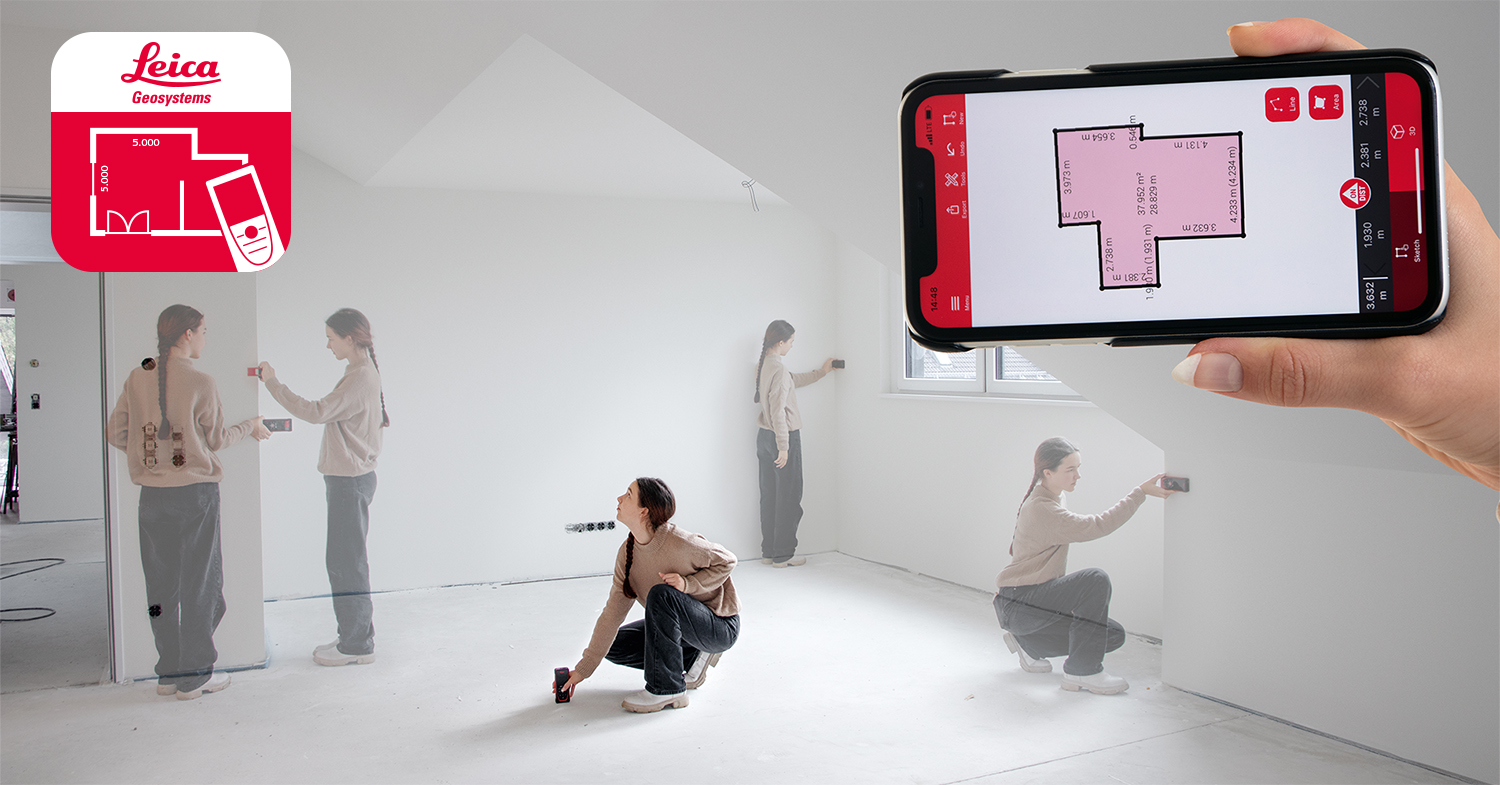
With the latest enhancements in the Leica DISTO Plan App, this process becomes dramatically easier. The Smart Room function allows you to generate complete floor plans simply by walking the room and taking wall measurements in sequence. The app automatically calculates wall lengths and the angles between them using the DISTO’s integrated IMU sensor. The new Diagonals feature further refines the accuracy of the captured geometry and allows you to confirm and wall positioning and angles with confidence.
Below we demonstrate how this workflow helps you create reliable and detailed room plans—quickly, intuitively, and with minimal effort.
Automatic Creation of a Complex Floor Plan
Challenge:
Capturing the layout of a single room sounds straightforward—until you face:
- Irregular geometry: angled walls or non‑square corners
- Manual errors, especially when relying on sketches and handwritten notes
- The need for verification, e.g., checking whether walls are square or if dimensions truly match reality
Creating an accurate digital floor plan can take more time than expected, and small inaccuracies may lead to issues later during planning or installation. When the room becomes more complex—as in this example situation—these challenges increase quickly.
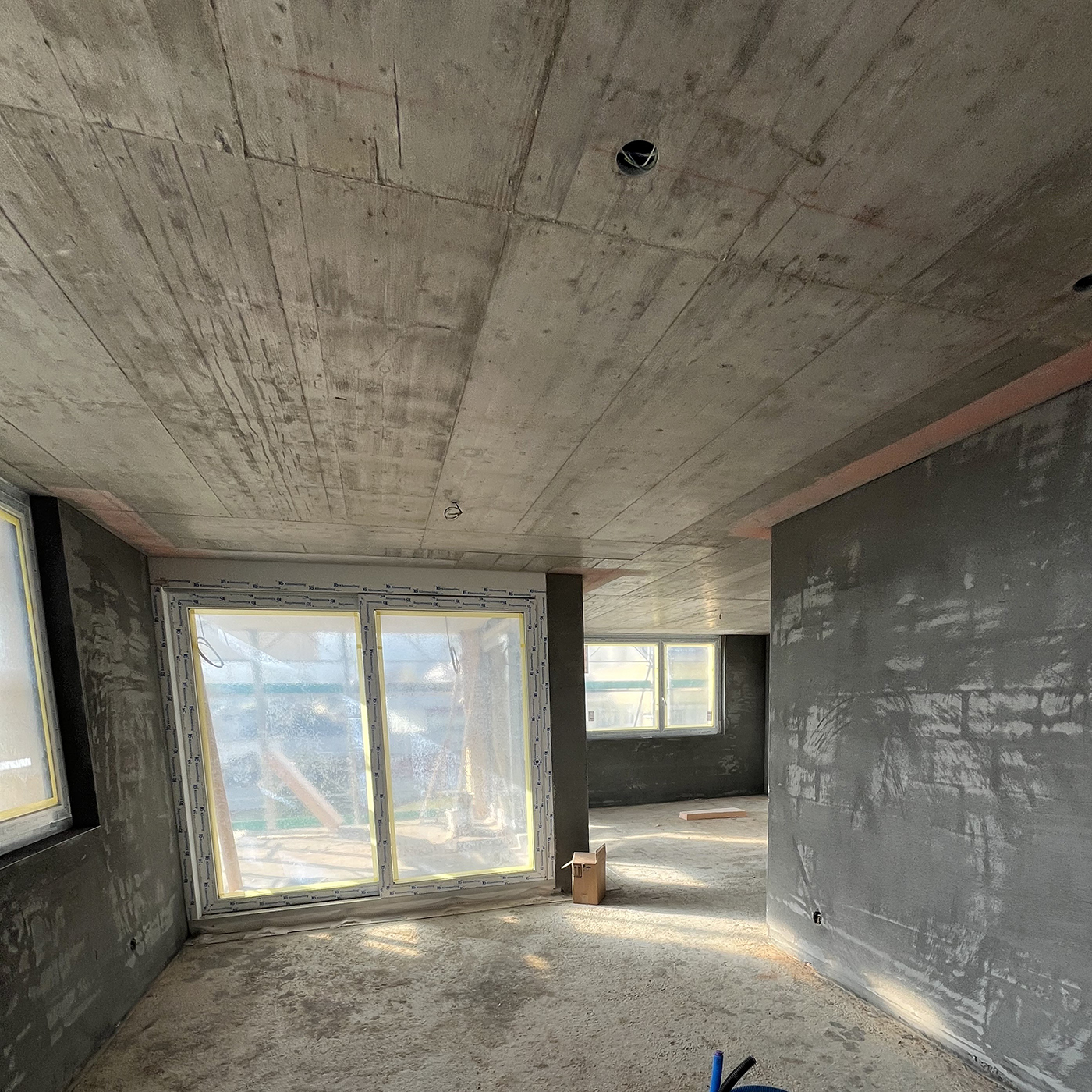 | 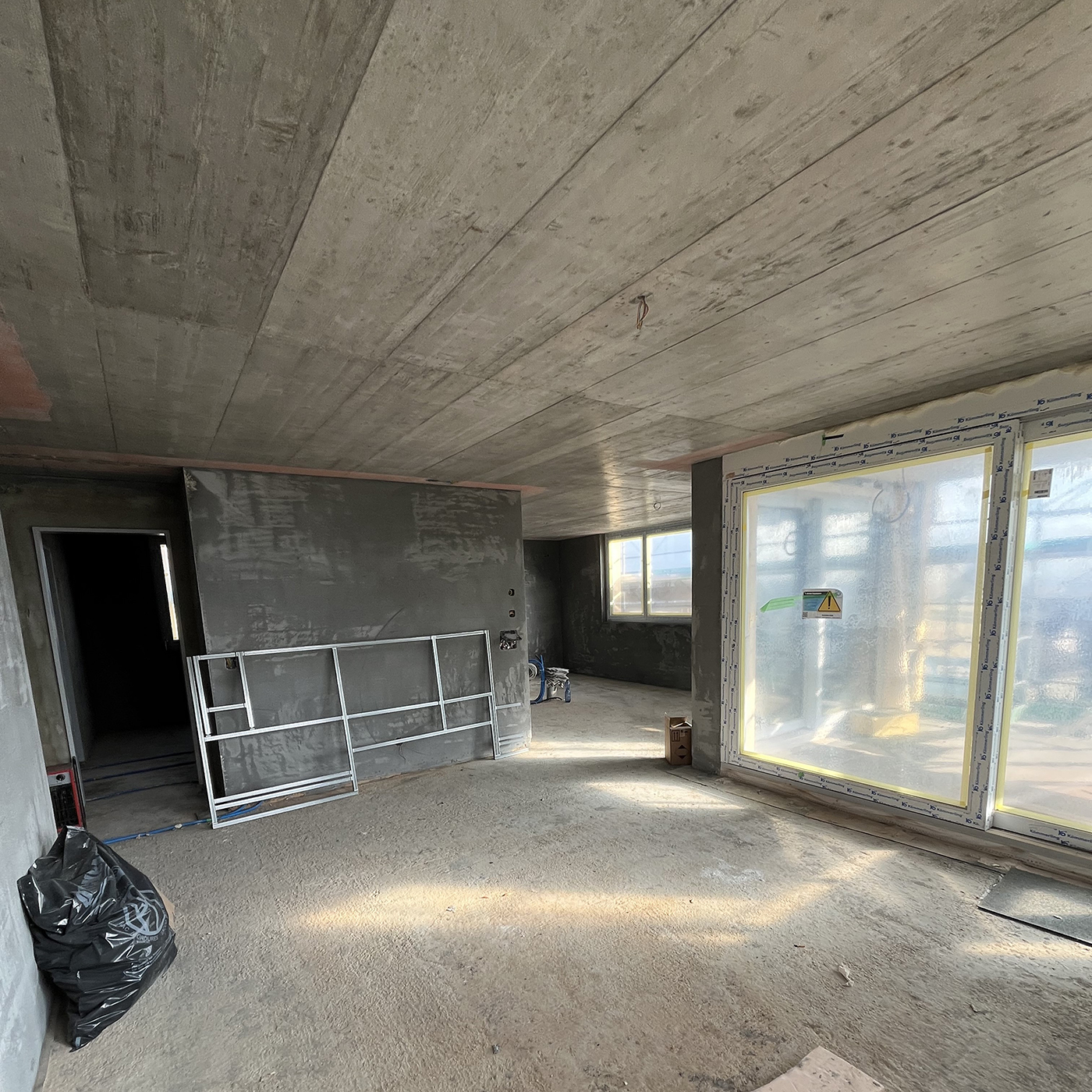 |
Real situation on site – living room with interconnected spaces
Solution - Smart Room and Diagonals
Thanks to the built‑in IMU technology in the selected Leica DISTO devices (from the D2 upwards), the Smart Room function lets you create a room plan while you are measuring. Instead of sketching or manually constructing geometry, the app automatically builds the room layout based on the measurements and angles you take on site.
What is an IMU and why does it matter?
An IMU (Inertial Measurement Unit) is a small sensor module containing three accelerometers and three gyroscopes arranged at right angles. It measures acceleration and angular rotation along the X, Y and Z axes. In a DISTO, this allows the device to detect how it is held, rotated, and moved during each measurement. This is what enables Smart Room to create a floor plan automatically: the app knows both the length of each measured segment and the angle under which it was taken—making it possible to reconstruct the room shape without any manual drawing effort.
1. Walk the room — the app does the drawing
Select Smart Room in the DISTO Plan App and start capturing the room clockwise or counterclockwise. Every distance you measure is transferred directly into the app, which simultaneously records the angle and rotation of the device using the IMU. This means the app understands not only how long a wall is, but also how it is positioned relative to the previous one.
As a result, the app automatically generates the correct room outline—no manual sketching required.
2. Add a height measurement when needed
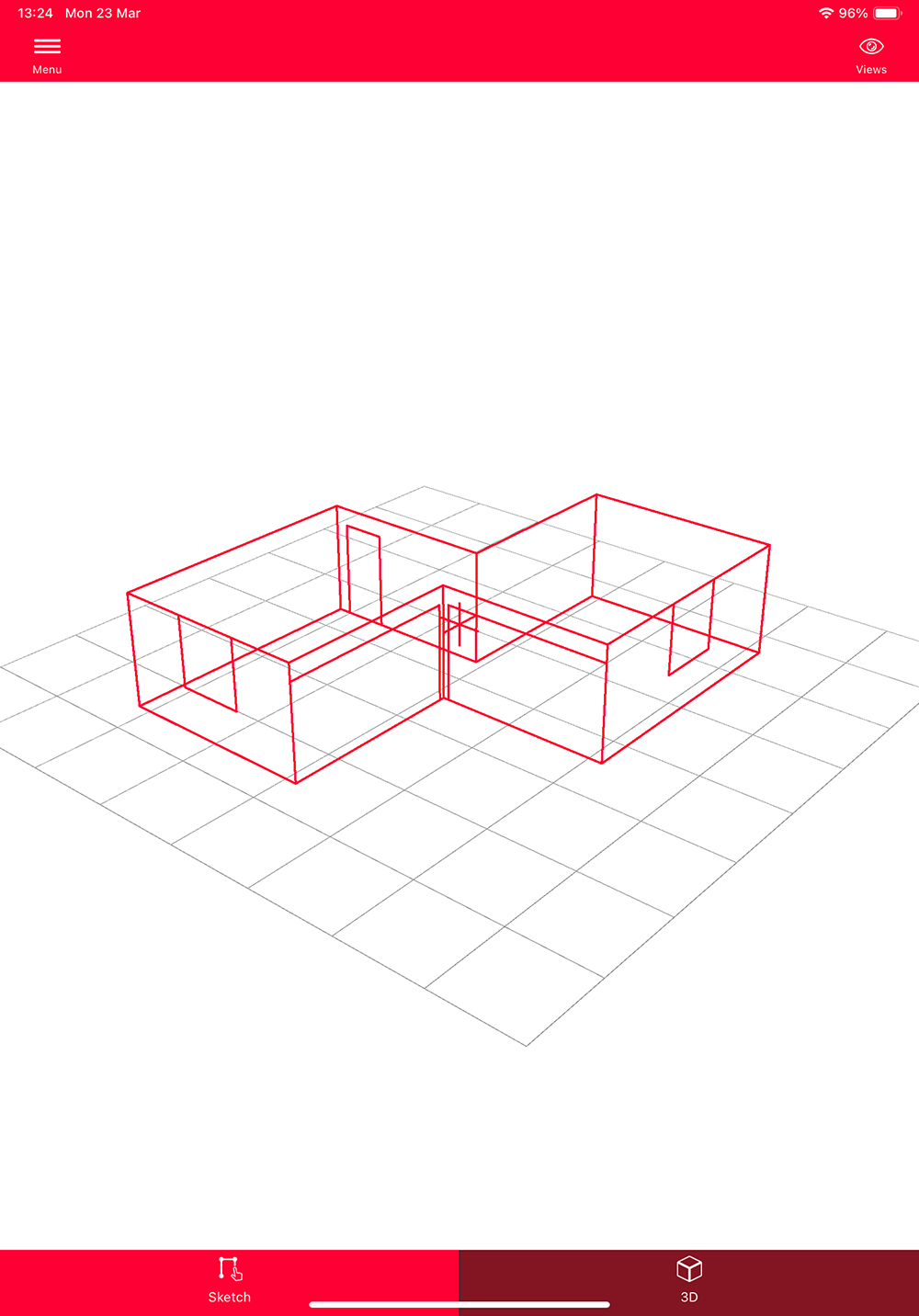
A simple vertical measurement adds the room height, which the app recognises automatically. This enables easy switching to a 3D view later.
3. Finish the room — the floor plan appears instantly
After completing all wall measurements, the app generates a full room plan immediately, ready for 2D or 3D viewing and further editing.
4. Enhance precision with Diagonals
The Smart Room function already delivers highly accurate room plans by combining distance measurements with the DISTO’s integrated IMU sensor. This means that in most cases, the automatically generated layout is precise and ready for use without further adjustments.
However, for professional applications where absolute accuracy and CAD‑ready geometry are essential, the new Diagonals feature elevates the result to a completely new standard.
With Diagonals, you can:
- Verify the true shape of a room, ensuring that walls that appear parallel or perpendicular actually are.
- Confirm or correct wall positions, eliminating any minor deviations that may accumulate during the walk‑around measurement.
- Fine‑tune irregular spaces, especially when dealing with angled walls, complex footprints, or older buildings where nothing is perfectly square.
The app suggests suitable diagonals after the Smart Room plan is generated. Simply measure them, and the plan is recalculated with even higher accuracy—ideal for CAD work or situations where every millimeter matters.
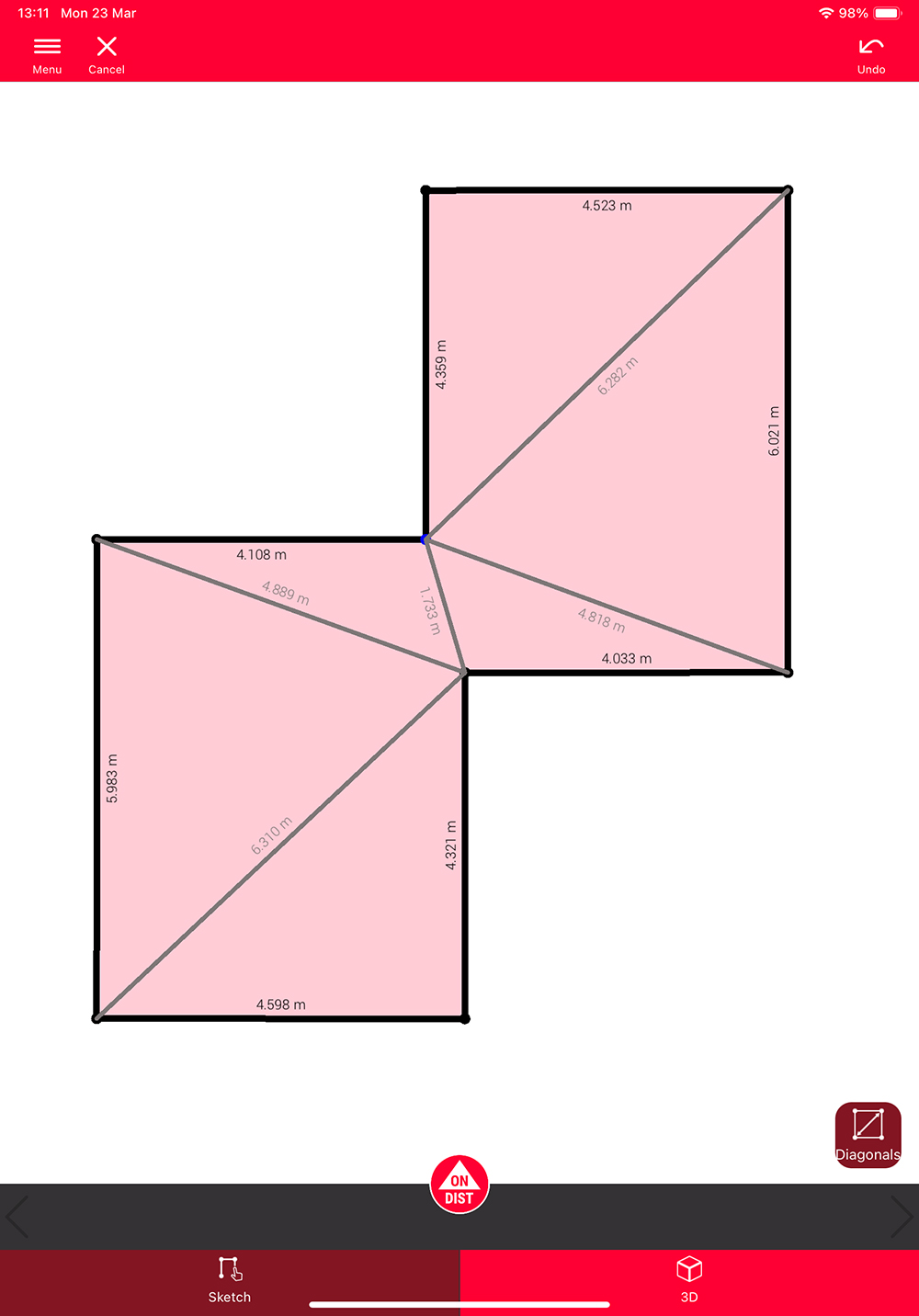
| 
|
The Power Behind This Combination
By combining Smart Room for fast, automated plan creation with Diagonals for high-level refinement, you achieve a floor plan that is not only visually accurate but also geometrically verified.
Smart Room is completely free in the DISTO Plan App, making automated floor-plan creation accessible to everyone. And because it’s supported by most current DISTO devices (from the D2 upwards), a large number of users can benefit instantly. With the addition of Diagonals, this already powerful workflow becomes a truly professional-grade measurement solution—fast, precise, and ready for CAD.
Smart Room speeds up the job.
Diagonals lock in the accuracy.
Together, they deliver professional-grade results every time.
For a real‑world demonstration, take a look at our How‑to Video showcasing Smart Room and Diagonals using the latest DISTO D2.
Flexible Export & Display Options
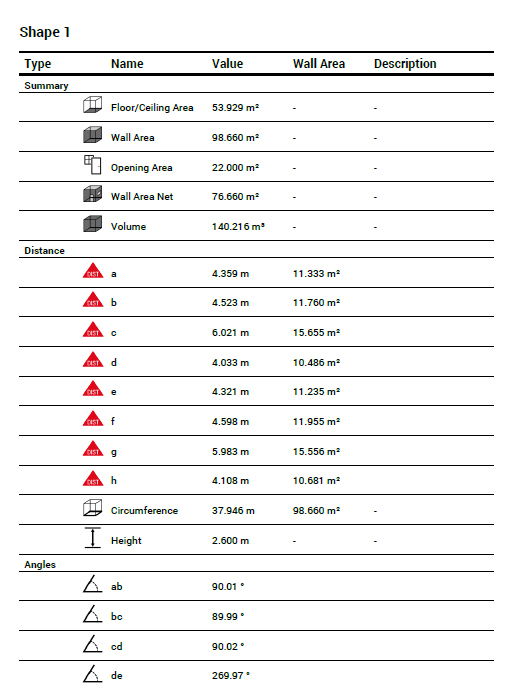
PDF Pro Format: Create professional, well-structured reports in PDF Pro format. Each document includes key measurement details - wall lengths and areas, floor areas, volumes, angles between walls and more - all in one place. Personalise your reports with your company's name and logo, and use these PDFs, for example, to create professional quotations quickly.
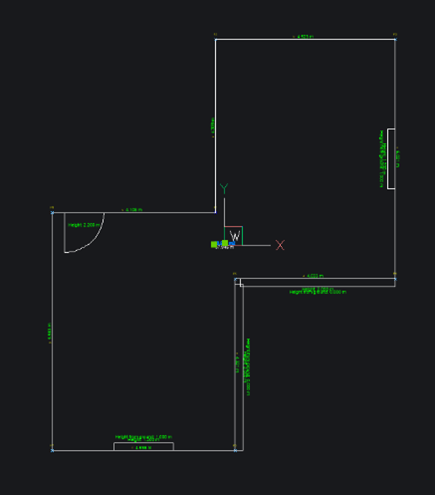
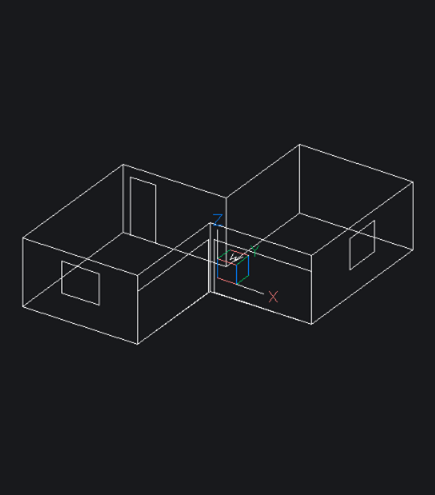
CAD Formats: Export your data for further processing in your preferred software, either as 2D or 3D data in DWG or DXF format. Easily switch on or off distance, circumference or area labels to get a more detailed insight or a clear view.
Export Example:
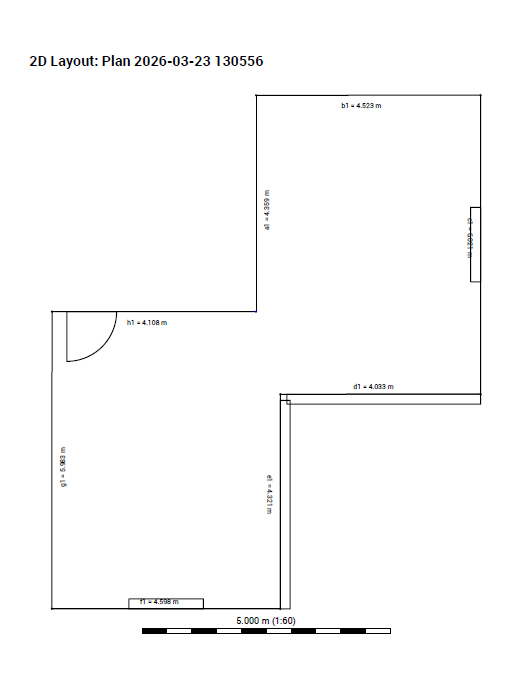
| 
|
| 
|