
 RTC
RTC
 BLK360
 BLK2GO
 BLK ARC
 BLK2FLY
 BLK3D
BLK3D
 Accessories

You’ve attached your Leica BLK ARC to the carrier of your choice. Now, let’s go over the best tips and tricks for operating your new laser scanner module.
Always keep firmware up to date
Whether you’re unboxing your BLK ARC for the first time or mounting it onto a new carrier, always make sure your firmware is up to date.
Using the latest firmware version will ensure that your BLK ARC is running optimally and that you keep up to date on the latest improvements and newest features added to the ARC.
Receive firmware updates for your BLK ARC seamlessly with OTA updates via the BLK Live app for Android or iOS devices. If you need to manually download firmware, visit myworld.leica-geosystems.com.
The best carriers for the BLK ARC
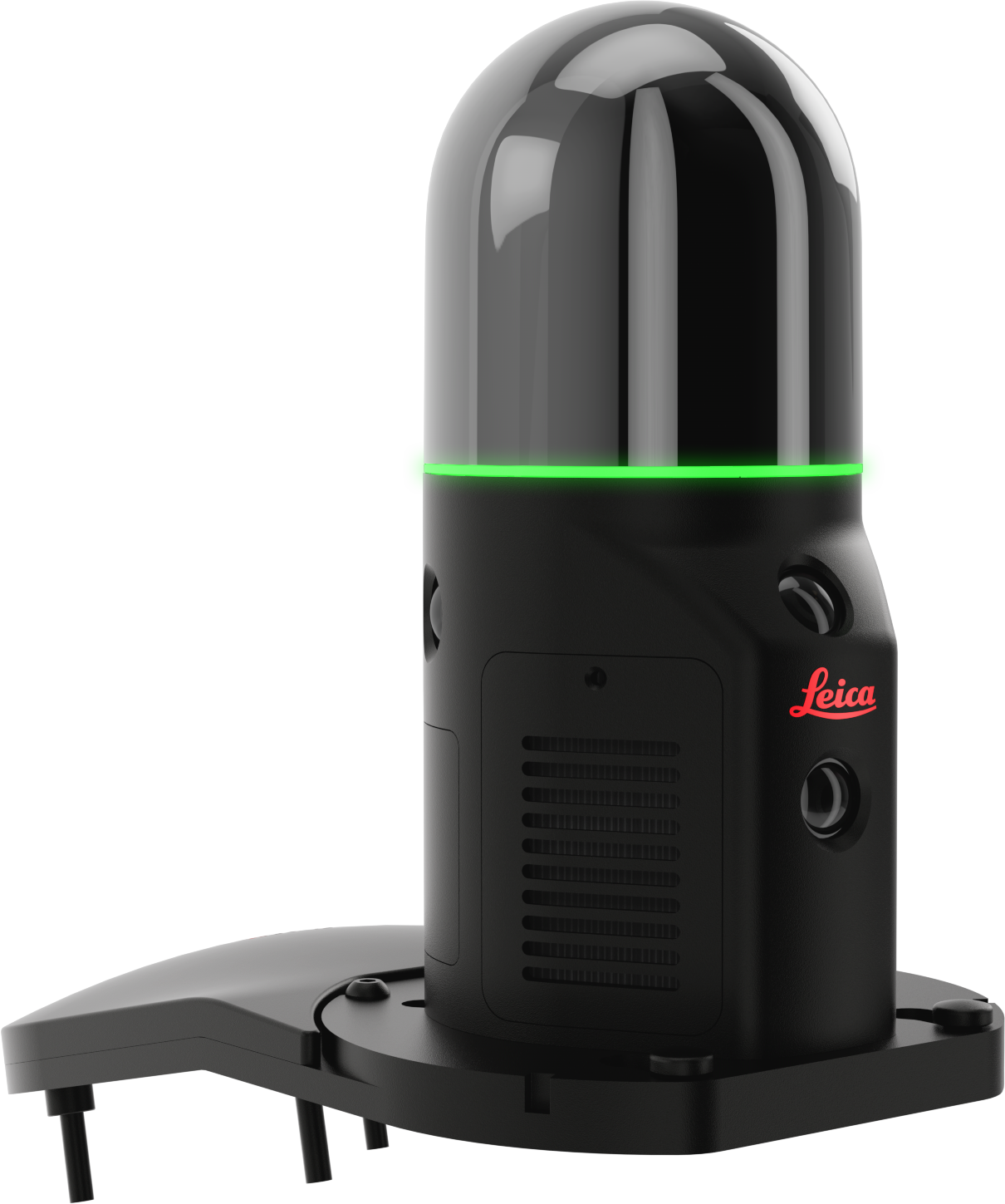
The BLK ARC can be used on manual mounts such as a pushcart, a backpack, or a handheld, as well as a variety of robotic carriers like Spot. Or use a combination of them. To see a full rundown of the BLK ARC on different carriers, click here.
When mounting the BLK ARC onto your carrier of choice, make sure no parts of your carrier obstruct the scanner’s field of view to capture.
Keeping robotic limbs and carrier hardware out of the BLK ARC's field of view will ensure that the onboard GrandSLAM technology works as intended and complete data capture is achieved.
Initializing your BLK ARC
Your BLK ARC requires a simple initialization process.
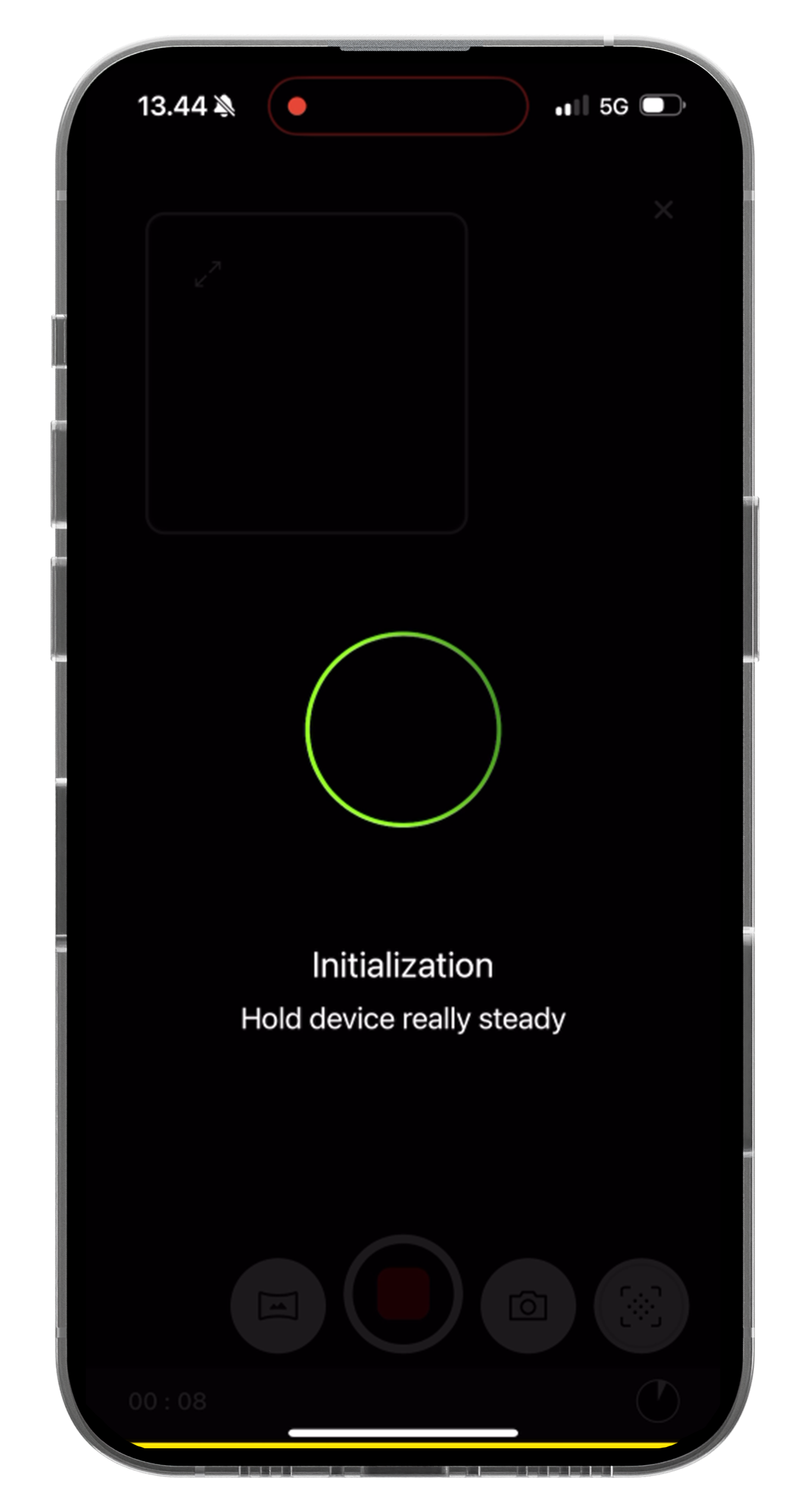
Once the BLK ARC is on, start a scan. To indicate the initialization process has begun, the LED will flash yellow. When initializing your BLK ARC, you can choose between two methods: Dynamic or Static. Whatever method you choose, it’s important to set up the best initialization conditions for the best quality data.
-
Ensure you don’t cover the BLK ARC’s cameras/sensors
-
Minimize foot traffic and moving objects next to the BLK ARC
-
Keep BLK ARC’s movements smooth, or keep the module completely still if in static mode
When the LED ring is pulsating green, the initialization process is complete, and the BLK ARC has begun scanning.
Capturing data completely
For complete data capture, you need to make sure you capture what you need.
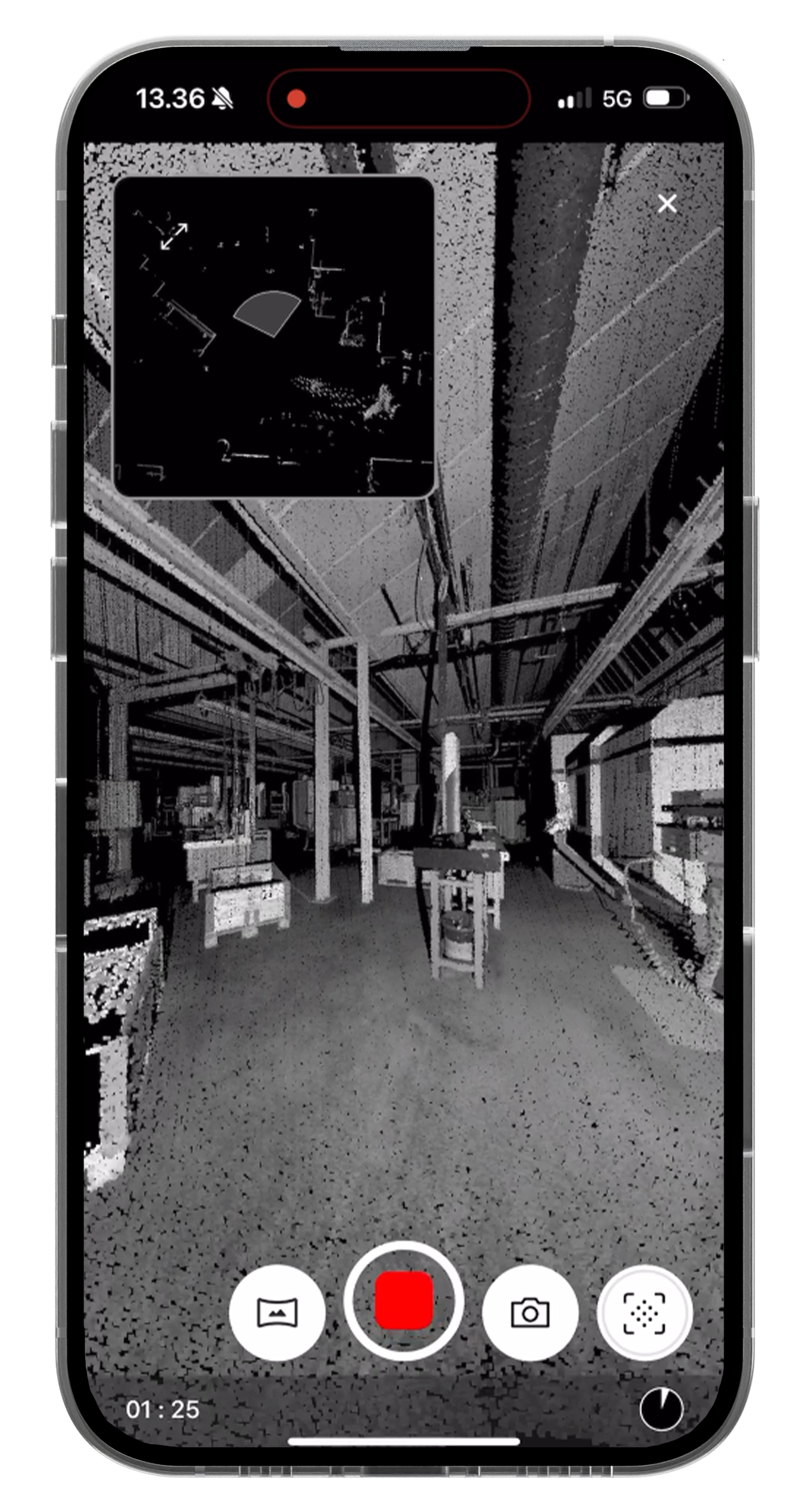
To ensure you don’t forget to capture everything, our experts recommend viewing the real-time data capture via the BLK Live app or the Leica Cyclone FIELD 360 app.
During your scan or after it, check from the preview if you've scanned everything. If you notice you forgot to scan an area or walk around an object, you can always steer BLK ARC back to capture the area once more from a different angle.
If you already stopped your scan, you can capture forgotten areas again. And register the scans together if you have enough overlap with your previous scans.
Utilize the BLK ARC’s ability to capture both mobile and static scans to capture more details when needed. Dive into the exact benefits and how-tos of mobile and static scans with our article, The Best of Both: Static and Mobile Scanning with the Leica BLK ARC.
Keep the BLK ARC movements smooth
The BLK ARC was made to scan on different terrains, from bumpy roads, construction sites, and even the sea. Smoother movements with the BLK ARC during scanning means a better end result for your scan data.
Intense shaky conditions and erratic movements will stress the IMU. So, when scanning with your BLK ARC, make sure the laser scanner module moves smoothly across the site you want to capture.
Smart transitions for doors and stairways
When it comes to sending the BLK ARC on a mission to scan, make sure you scope out the area you are scanning. Check the doorways, hallways, stairs, and lighting conditions of the space to ensure you have smooth transitions throughout your scanning sessions.
-
Lighting—When scanning with the BLK ARC, make sure to provide good lighting conditions. Brightly lit spaces are best so the BLK ARC can utilize its visual SLAM technology for tracking its location through a space. Remember, lighting conditions that are too dark might also affect colorization of the point cloud.
- If lighting conditions are not optimal or are darker, consider mounting an additional light source onto your carrier or robot.
-
Stairs—When it comes to scanning stairs, our experts recommend that you have your carrier or robot walk up the stairs while scanning rather than down.
- Walking up allows for a better field of view for the BLK ARC, ensuring accurate data capture. And with data visualization on your chosen app, you'll be able to see more, too.
-
Doorways and Transitions—When navigating your BLK ARC through doorways, slow down your BLK ARC for smooth transitions from one space to another so the SLAM algorithm can adjust to the change.
- Slowing down will keep your data quality consistent even when the environment changes.

Consider capturing loops
When capturing data with the BLK ARC, we advise that you create loops by revisiting areas with the BLK ARC to anchor its SLAM for better data quality.
Revisiting the same areas will ensure that your scan paths have greater detail and accuracy in postprocessing in Leica Cyclone REGISTER 360 PLUS or in Reality Cloud Studio, powered by HxDR.
This process is called re-observation. For the best data quality, instead of one large loop, create medium-sized loops that cross or zigzag throughout the space you're scanning to create overlap among your scan paths.
When scanning repetitive spaces, such as a long featureless corridor with multiple doors that look the same, it's important to avoid walking straight for too long.
Instead, 'looping' from the beginning of the corridor through rooms and back into the corridor will ensure a more feature-rich environment for scanning.
The best software and apps to use
Work with all the data your BLK ARC captures with a suite of software designed to make scanning, registering, and sharing your data – along with a heap of other features – more intuitive, simple, and fast.

Reality Cloud Studio, powered by HxDR
With Reality Cloud Studio, you can upload, share, collaborate, and visualize your BLK ARC data directly in the cloud.
Seamlessly connect with stakeholders, collaborators, and team members on your data anywhere with quick and easy tools and features like data flythroughs, auto-registration, and auto-meshing.
BLK Live app
The BLK Live app for your Android or iOS device makes controlling the BLK ARC as simple as tapping the record button. Once pressed, the BLK ARC will scan as your carrier moves.
With the BLK Live app, you can scan and stream real-time data capture, adjust live point cloud data views, receive on-screen guidance, and export your data directly to Reality Cloud Studio.
Leica Cyclone FIELD 360 app
With the Leica Cyclone FIELD 360 app for your Android or iOS devices, align multiple BLK ARC scans, add notes, create floor plans, and so much more.
The field app is free but for full access to suite of tools an active license from Cyclone FIELD 360 or Cyclone REGISTER 360 PLUS software is required.
For a run-through on the feature list of the BLK Live app and Cyclone FIELD 360 app, check out our detailed article – The Leica BLK ARC lands on the Leica BLK Live app and Leica Cyclone FIELD 360 app.
Spot app
With the recently released integration of BLK ARC onto the Spot app, users can now stack and control BLK ARC reality capture as part of a full suite of autonomous robotic capabilities alongside other payloads.
BLK ARC UI
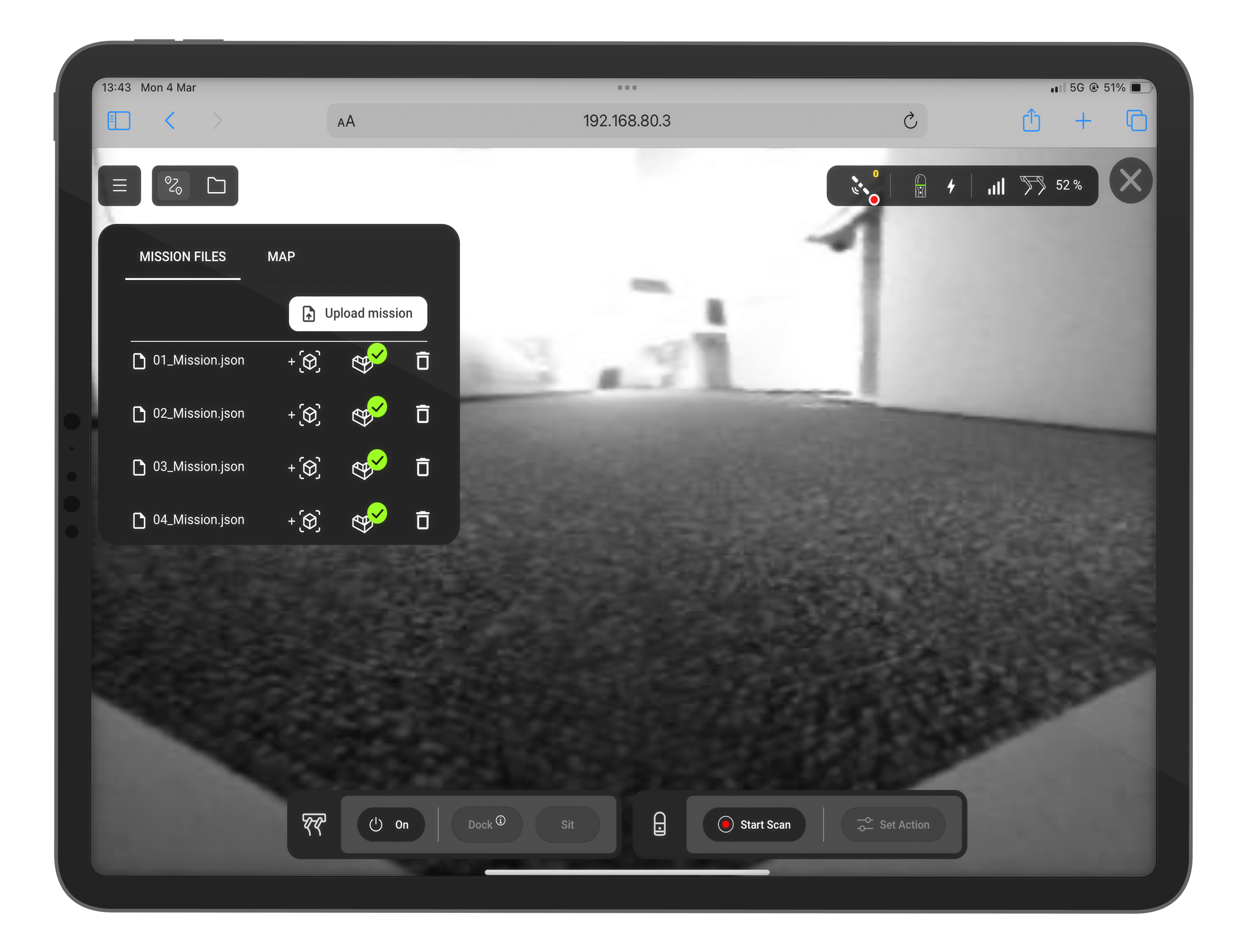
With the BLK ARC UI, you can control your BLK ARC and Boston Dynamics Spot remotely via a web browser from any device.
When scanning in constantly changing environments, gain access to level 4 autonomy for your BLK ARC and Spot solution with BLK ARC UI. Understand the environment your BLK ARC is scanning in with features like global obstacle avoidance, remote mission planning using a point cloud, and more.
Download detailed information on BLK ARC UI in myWorld customer portal.
We hope you found these tips helpful for scanning with your BLK ARC!
Got Questions? Contact one of our BLK ARC specialists here.


